Showing posts with label ADFBC. Show all posts

Wednesday, March 19, 2014

Using Transient Attribute on Business Components

This is very simple task, but could be useful for developers who are new to ADF. You can add a Transient attribute that is derived from other attributes or from some other data source. Here are simple steps on how to do this and how to make sure that value for Transient Attribute gets updated when other attributes are changed.

  • Create new attribute on Entity object.


  • It seems attribute is marked as persistent. So you will have to change it.


  • If you don't have Entity Java class and accessor methods, please generate it (see Java tab). Once you have get method for FullName, change as shown below.


  • Add same attribute to your View Object as well, so that you can run BC Tester.


  • As you navigate to rows, you will data change in FullName. But if you change FirstName of LastName, it is not reflected in FullName. You will need to specify Dependency on FirstName and LastName for FullName attribute as shown in next screenshot.


  •  Now as you change FirstName, you will see change in FullName immediately.

These same steps apply to View Object transient attributes also, except few minor differences.

Saturday, March 15, 2014

Creating Transient View Object

Transient View Objects are very useful to build data entry forms when you don't necessarily want to create instances of Entity based View Objects till later time. In my projects, i have always tried to use Transient View Objects instead of POJO Databeans to bind to UI components. I have also used such Transient View Objects to collect search terms, when not using Query component, then i create and apply View Criteria in my Application Module method based on data entered by User which is collected from Transient View object.

Here is how you can create  Transient View Object.
  • Create New View Object, make sure to create View object in default views package. We will re-factor into different package later. This is done as JDeveloper at times creates Java files in wrong package otherwise.
  • Use consistent suffix for View Object Name to indicate that it is Transient View Object.
  • Select Programmatic option for Data Source in View Object wizard.
  • Add attributes as needed.
  • Make sure all Attributes are always updatable and set to be persisted. Also, Make sure to define a Primary Key attribute (one or more) for View object.

  • Finish View Object creation wizard.
  • Go to general tab, expand Tuning and Make sure No Rows is selected for Retrieve from the Database section.
  • Save your work.
  • Refactor Transient View Object in to a different package of your choice. For example, views.trans package.
  • Open View Object's Java file, generate if you don't have it and implement beforeRollback and afterRollback methods as shown below.

Saturday, August 10, 2013

Create REST WebServices using BC4J

JDeveloper 11.1.1.x and ADF does not provide much support for REST Services, but it does recognize JAX-RS annotations and help configure Jersey. Here are simple steps to create REST Service over ADF Business Components.

1. Create Application Structure
Create Generic Application. Delete generated Project. Add Model Project and Web Project (without Faces). Create Connection (hrdb) to HR Schema.

2. Generate Business Components and Prepare Service API
This is similar to what i did for SOAP Web Service Example.

3. Add dependency to Jersey & Jackson
Add Jersey and Jackson libraries to Web Project.
See my blog about Installing Jersey libraries for JDeveloper. Actually, i am just adding following jars to Project.
jackson-all-1.9.11.jar, asm-3.1.jar, jersey-bundle-1.17.1.jar


4. Create WebService POJO Class
Create POJO class with necessary API method(s). This example is not showing any exception handling, but you can throw Checked Exception to indicate Validation, Application or System type error situations to client.


5. Add annotations
5.1 Add @Path("/hrservice") annotation to HRWebService Java class. Import "javax.ws.rs.Path", when prompted by JDeveloper.

5.2 JDeveloper will provide a hint for you to configure web.xml. You will see a Yellow icon in line gutter next to @Path. Accept the hint and JDeveloper will configure web.xml for Jersey servlet.


5.3 Add "com.sun.jersey.api.json.POJOMappingFeature" init param for Jersey servlet in web.xml, value of this init param should be true. This will cause Jersey to use Jackson for generating JSON response. Default implementation (JAXB) has some issues, for example, it will return Object instead of Array if only one item is being returned in List.


5.4 Add GET annotation to getCountryList() method.


6. Add weblogic-application.xml
ADF libraries are included by adding shared library in weblogic-application.xml. This is automatically done if you create Fustion application, otherwise you can add it manually.


7. Test Web Service
Right click Web Service in Application Navigator and select Run or Debug.


Sunday, August 4, 2013

Create SOAP WebServices using BC4J

ADF Application Module can be enabled as Service Interface (SDO), but i take a different approach to this as shown below.

1. Create Application Structure
Create Generic Application. Delete generated Project. Add Model Project and Web Project (without Faces). Create Connection (hrdb) to HR Schema.

2. Generate Business Components and Prepare Service API
2.1 Generate ADF Business Components using JDevelolper Wizard. Create Application Module later, otherwise initial wizard adds many entries to Application Module's Data Model.
2.2 Create simple POJO for Country object.


2.3 Create service method to return all Country objects. Expose it to Client Interface.


Using Application module XML Editor, add this service method to Client Interface (Java tab).


3. Create Web Service POJO class
Create POJO class with necessary API method(s). This example is not showing any exception handling, but you can throw Checked Exception to indicate Validation, Application or System type error situations to client.

Alternatively, you can also start by creating WSDL file to represent your Web Service.


4. Generate SOAP Web Service from POJO
Generate Web Service using JDeveloper wizard. This generates SOAP Web Service only with JDeveloper 11.1.1.x, hopefully future versions of JDeveloper will allow generation of REST Services.


Note annotations added by Wizard.


5. Test Web Service
Right click Web Service in Application Navigator and select Run or Debug.


Why this approach?
1. This approach allows for flexibility in exception handling, as you can control types of exception thrown to client. Service Generation approach from Application Module throws Runtime Exceptions which is seen as SOAP Fault by client and it does not have any useful information.
2. You may want to control WSDL and / or Schema to confirm to your Enterprise Standards, which is possible only when using this approach.
3. This approach is little bit clean, as Web Service and BC4J code is organized in separate projects.

And, It is not at all difficult to generate Web Service from POJO with available Wizards.

Sunday, June 30, 2013

Use of Date with ADF

Date creates many confusion & bugs in our applications, some of which are only found when Day Light Savings time changes. :)
There is fundamental issue with how we talk about Date. For example, my date is in Central Time or for this Location my Date is in Eastern Time. As we all know, Date is milliseconds representing GMT time & String value we see in Debugger or Logs is just String representation of Date with respect to some TimeZone.
Here is what i recommend for Date usage with ADF, some of which can very well apply to other frameworks as well.

1. Don't offset date value for Persistence


JDBC driver will transform value of Date is Server's Default TimeZone for storing in Table Column. At times, we try to offset value of Date, so that when JDBC Driver creates String representation using Server's Default TimeZone, it looks like GMT for example. This is clever, but not a good idea.

This approach can cause issues with Queries. It will also not represent values correctly on screen components. You can workaround these issues, but that's extra work that can be avoided, by accepting the fact that Date will be stored in Server's Default TimeZone.

2. Do not specify Date Format on Control Hints for Entity or View Object attributes


ADF does a good job of providing Control Hints that can be set on Business Components, but in this case I would recommend not setting any Format for Date on Entity and View Object. I have seen issues with Control Hints related to Date Format and more importantly it makes sense to control this based on User's Preferences / Locale.


3. Create Session Scope variables for TimeZone & Date Format


Using Phase Listener, create Session Scope values for TimeZone and various Date & Time formats. You can read this values from User's Preference or derive it using any other data store.

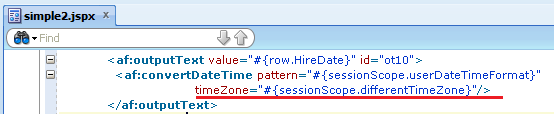
These can be used in UI pages with af:convertDateTime as shown below.


4. Specify TimeZone in trinidad-config.xml

If you set value of time-zone in trinidad-config.xml, it will apply to all Date components for display and input processing.


5. Specify Pattern on af:date Specify different TimeZone if necessary on af:date

If you want to display particular Date value in a different TimeZone, you can indicate that on af:convertDateTime. For example, Delivery Date would make sense to be displayed in TimeZone of Delivery Location.


Sunday, June 16, 2013

How to define List of Values for View Object attribute

This is very powerful feature of ADF and it often goes unnoticed. You can define a List of Values for View Object attribute including component types that you want to use by default. Once this setup is done, when you Drop View Object on your page, it will create List components instead of simple text box.

Let's define Department List of Values for "DepartmentId" attribute of EmployeeVO. We have "EmployeeVO" (Default VO for Employee table) and "DeparmentsLOVVO" (has Id & Name for all Deparments).

First open EmployeeVO and Select DepartmentId attribute.

Expand List of Values:DepartmentId and click Green Plus icon. You will see "Create List of Values" dialog like one shown below. 


This is not very straightforward User Interface. Now you can select where your List Data is coming from in "List Data Source:", if you don't have one, click Green Plus icon to create one, see screen shot below.

Make sure that you name your view accessor appropriately. See i am using "VA" suffix.


Select "List Attribute" now. This is the value from your List Data Source that will be stored in your View Object attribute when User performs selection on UI.


You can use different value to display on your List component than what is being stored in your Attribute. This is done from UI Hints tab.


You are almost done. Go to EmployeeVO's View Accessor tab. Select your View Accessor and examine "Row Level Bind Values" property. If Rows in your EmployeeVO can use different Department List than this value should be true. (blank also means true). Easiest way to figure this out is if you have Bind Parameters on your List View Object (DepartmentLOVVO) and that is controlled by another attribute in your View Object (EmployeeVO). For example, if your View Object attribute is State and it's list changes based on Country attribute in that same View Object.

You must set this value to "false", if list is static for all Rows in your View Object, Otherwise you will see Memory Leak and Performance issues.

"Row Level Bind Values" is sometimes cleared by JDeveloper, which can lead to issues. This is something you want to create Audit Rules to make sure that your Build Process catches it. 

Define Primary Keys for all View and Entity Objects

When working with ADF, it is best to AVOID ISSUES by doing the right thing. Now that is broad statement, but i will try to post my learning's on this Blog.
Each ADF View & Entity Objects must have Primary Key.
ADF Business Components will generally have Primary Key defined, when they are generated using "Business Components from Tables" wizard. But in other cases when you have Read Only or Transient View Objects, they will not have Primary Key by default.

For example, see following steps to create List of Values (SQL based) View Object.


Note that DepartmentId is not selected as Primary Key. Select "Key Attribute" check box for all attributes that are part of Primary Key for this particular View Object.


Now you can see DepartmentId is selected as Primary Key.


ADF uses Primary Key for selection process, so if you did not have proper primary key, you will see weird behavior in Table Selection.

Tuesday, June 11, 2013

Use Non Schema User for ADF Business Components

ADF Model project is configured with Database Connection to generate Business Components from Tables and/or Views. Generated objects are Not Qualified with Schema name if you use Schema User for Connection Configuration. This can cause failures like "Table or View does not exist.", when application executes with a Different User. You can always resolve such errors by creating Synonyms. 

You have two options:
  1. Use Non Schema User for JDeveloper Connection Configuration & no additional work needed when Sharing Code with other Applications.
  2. Use Schema User for JDeveloper Connection Configuration. You will have to create Public Synonyms.
I recommend Option #1 as it is very simple and use of Option #2 can lead to confusion due to use of Synonyms. And this only applies to Code Generation, if you write SQL, you should implement similar option. 

Option 1 : Using Non Schema User for Database Connection


Option 2 : Using Schema User for Database Connection